
Cowork changes everything about how you use AI
Cowork sets itself up (one command is all it takes)

You've probably seen the wave of excitement around AI agent modes: Cowork in Claude, Work in ChatGPT. And the hype is deserved: these tools are genuinely useful.
But most of you aren't getting the most out of them, or don't even dare to start, for one reason only: you're overcomplicating things.
You're looking for the perfect setup, the right settings, the way to "do it right." I get these questions every week (keep sending them, that's how I pick my topics).
And yet the answer fits on one line. Open the Claude Cowork app and type:
/setup-cowork start
That's it. Claude sets up Claude Cowork for you.
You could stop reading here, type the command, follow the steps, and you'd be ready.
One clarification: this command only exists in Claude. If you're on ChatGPT, section 3 gives you the equivalent; the logic is the same.
But if you give me 10 more minutes, I'll show you:
For beginners: the full setup in screenshots, and the one mistake to avoid at all costs (especially when Claude offers to clone your voice).
For advanced users: what this kind of tool really changes about the way you work, and what it will never change.
1. Setup, step by step
Once you've run the "/setup-cowork start" command, Claude generates a setup form. You need to fill it out completely.
Rather than describing my answers, here are the screenshots.
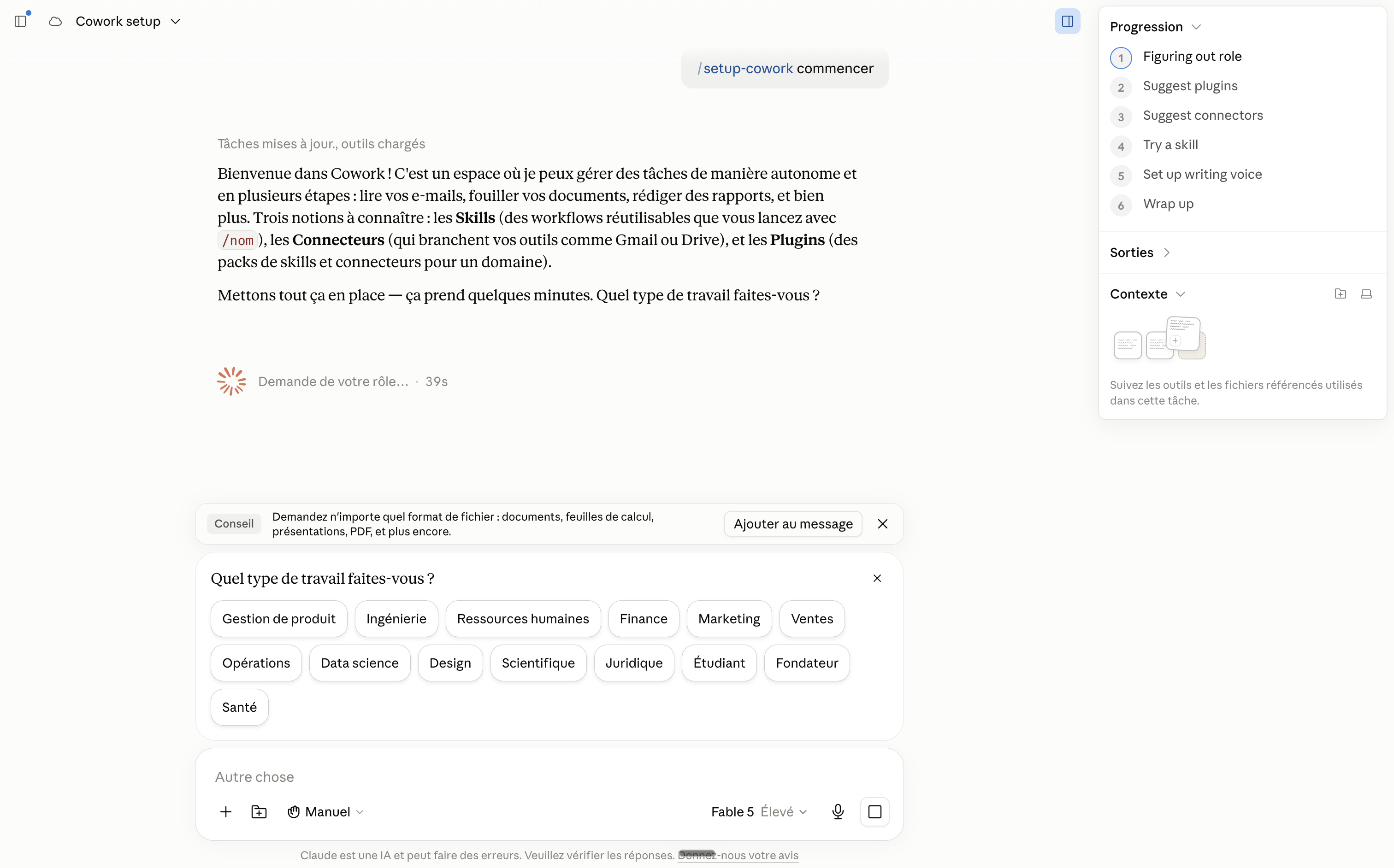
[Screenshot 1: the initial form]
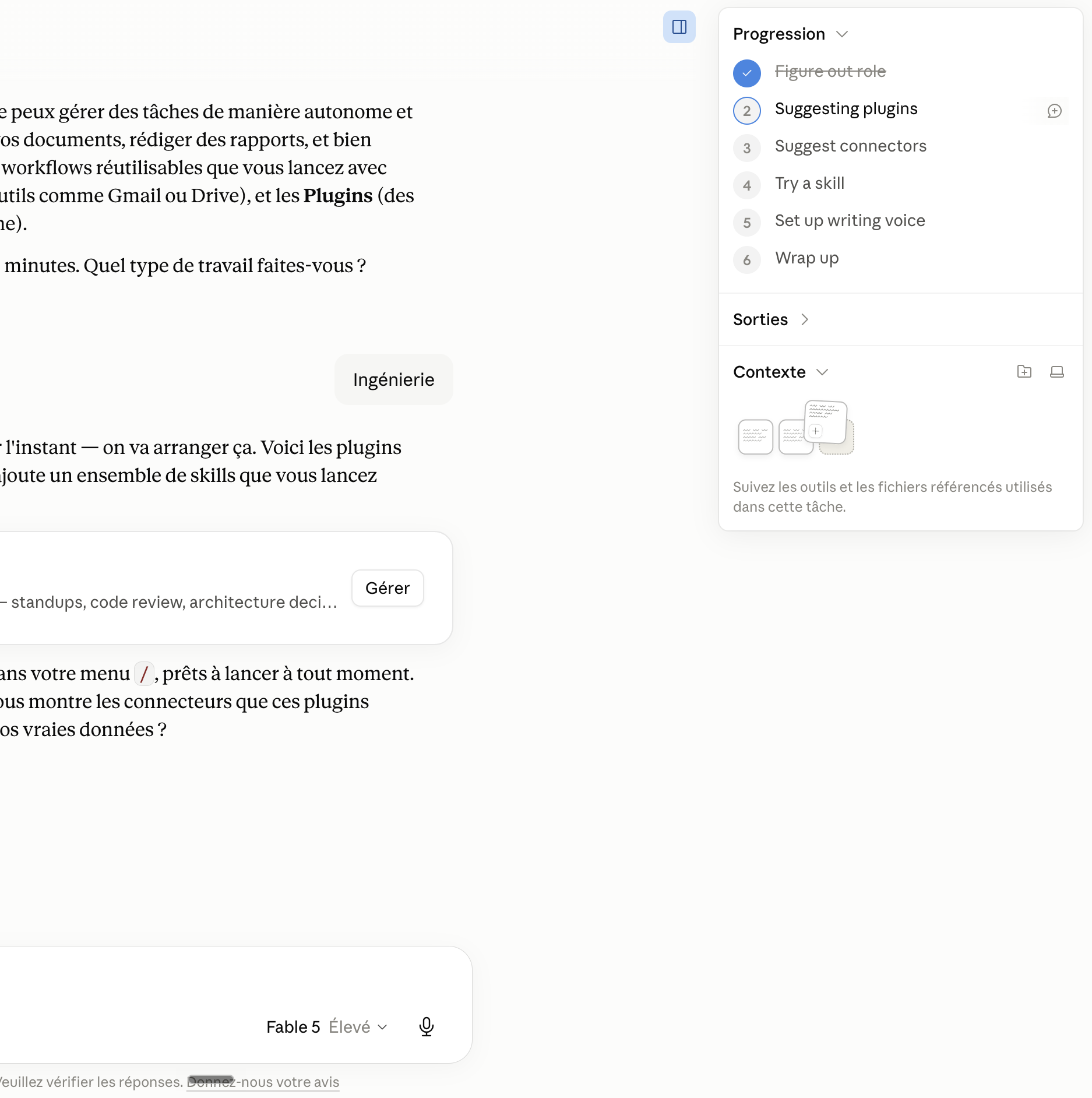
When it asks about your role, just answer what you are: founder, consultant, marketing manager, freelancer. Claude then suggests plugins that fit. Pick the ones that match your day-to-day, not the ones that look impressive.
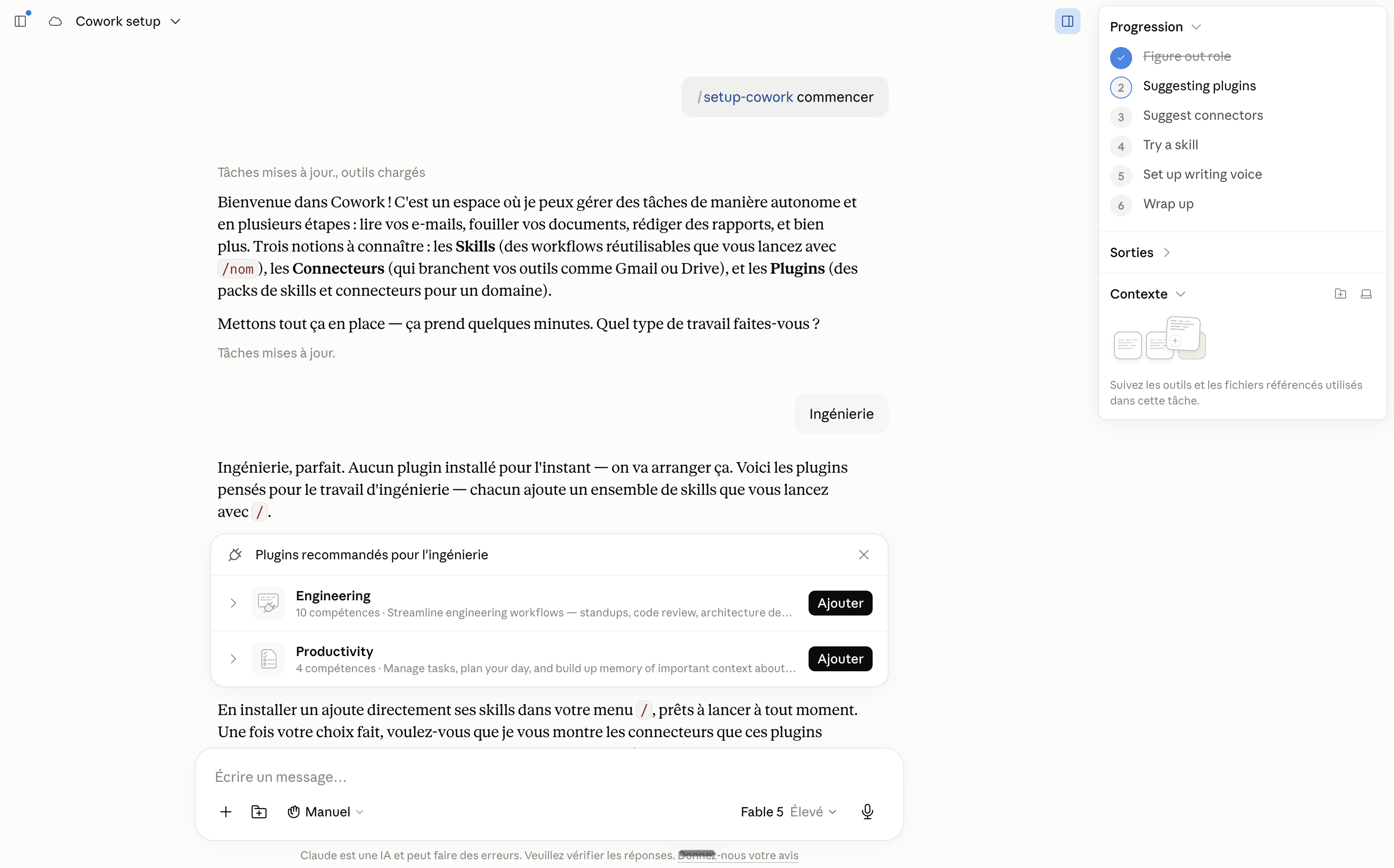
[Screenshot 2: the plugin suggestions]
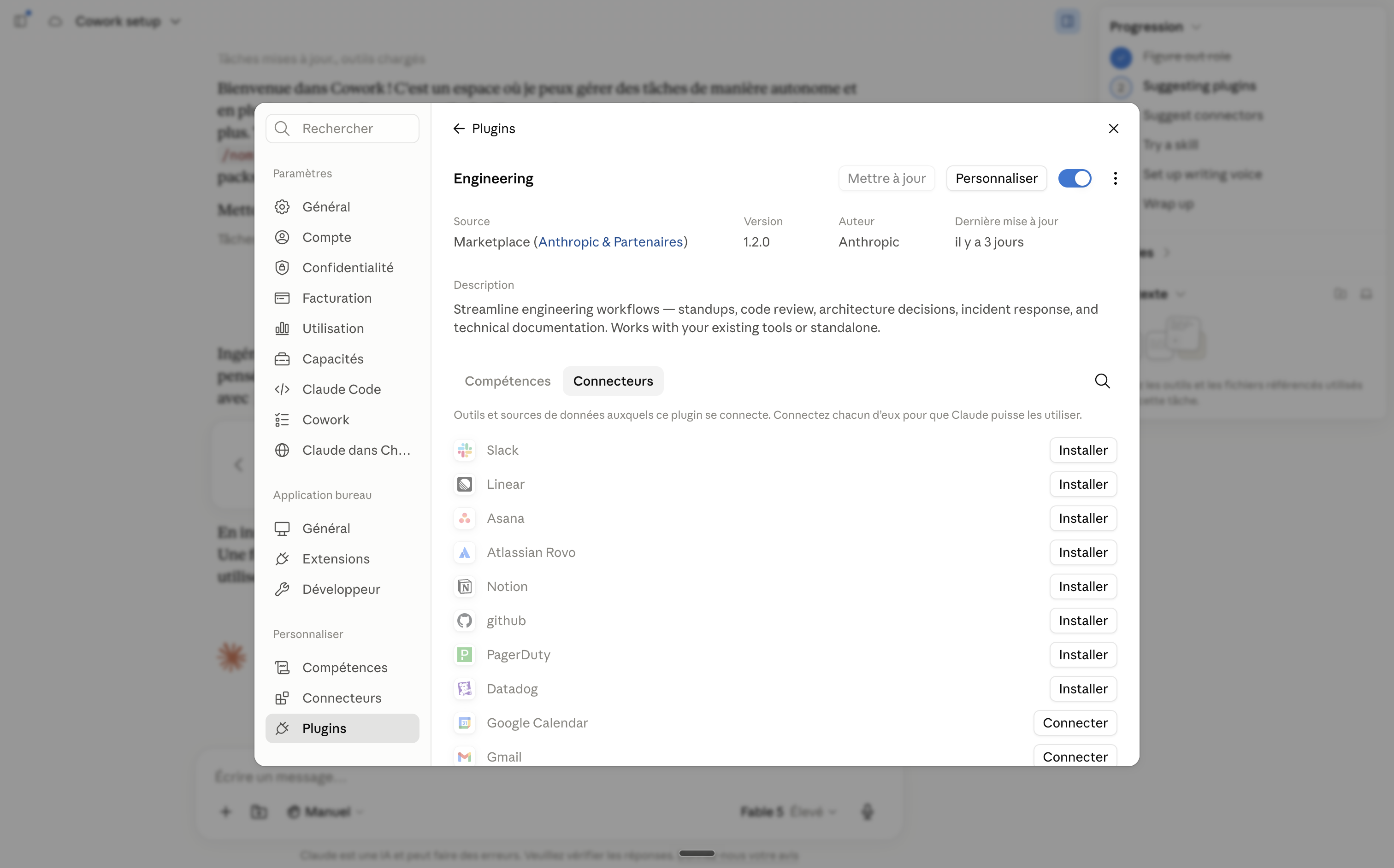
Clicking "Manage" takes you to the full catalog. Think of plugins as mini extensions for your Claude: each one adds specific abilities ("skills") that you can then call up with a / command.
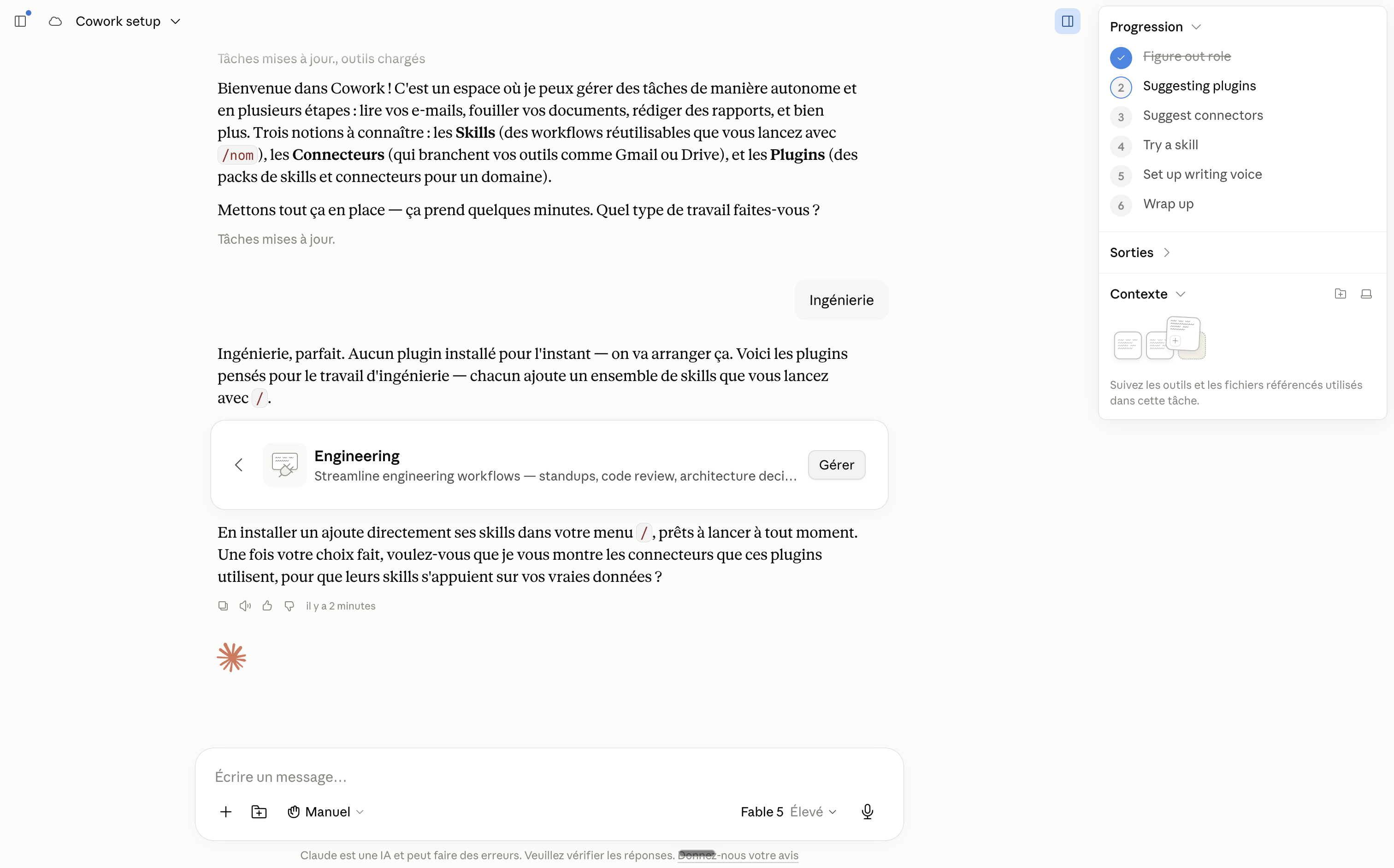
You'll find them all in your settings, under Plugins.
2. Connecting your apps
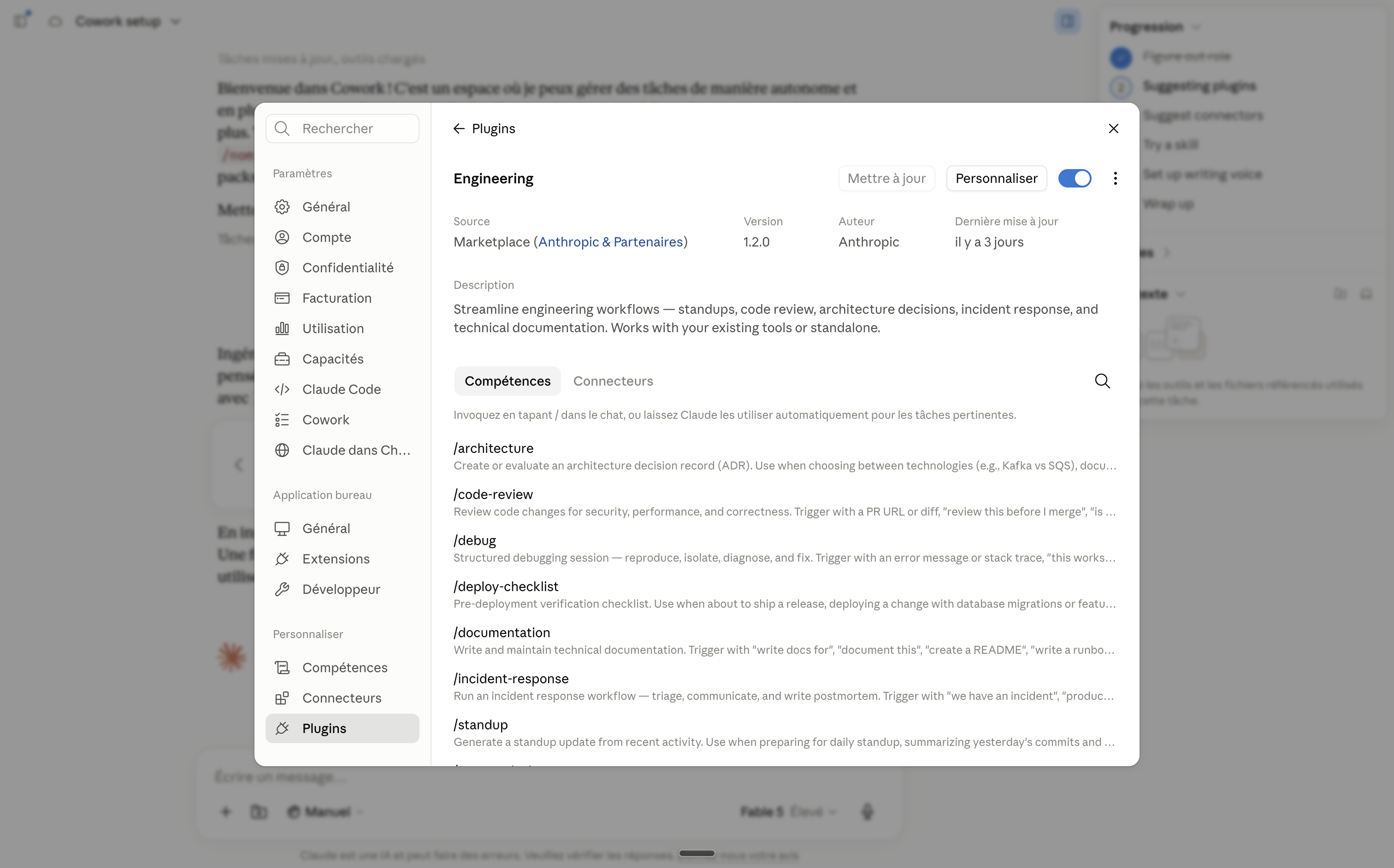
Next step: Claude offers to connect your tools (Gmail, Google Drive, your calendar, etc.).
Only connect what you need. You can always add more later from your settings, under Connectors.
After that, the principle is simple: at each step, answer "yes, let's continue" to Claude's last question. If you're lost, tell it so, literally. It rephrases and picks up again.
If you're using Cowork, the progress list on the right updates as you go. You can see exactly where you are.
3. What if you're on ChatGPT?
The logic is the same, but everything is manual. Here's how it maps:
Cowork becomes ChatGPT Work. It's OpenAI's agent mode, launched in July 2026: you describe a goal, it chains the steps together and hands you a finished deliverable (spreadsheet, presentation, document).
The /setup-cowork command doesn't exist. No setup assistant. You have to do yourself what Claude does for you: go to Settings, then Apps and connectors, and connect the useful apps one by one (Gmail, Google Drive, your calendar). With recent models, some connections like Gmail and Google Calendar are then used automatically when relevant, without you having to call them up.
Plugins have no direct equivalent. The closest thing is custom GPTs (preconfigured assistants) and, if you're on a team with a Business or Enterprise plan, Workspace Agents, reusable agents you configure for recurring tasks.
Your work profile. Since there's no setup form, carefully fill in your custom instructions (Settings, Personalization): your role, your context, your format preferences. That's your equivalent of the Cowork questionnaire, and most ChatGPT users never fill it in.
In short: in Claude, one command and twenty minutes of conversation. In ChatGPT, the same result, but you assemble the pieces yourself. The next point, though, applies to both in exactly the same way.
4. The mistake to avoid
At one point during setup, Claude Cowork offers to build your "writing voice": it analyzes your texts so it can write like you.
This is where I'd stop you.
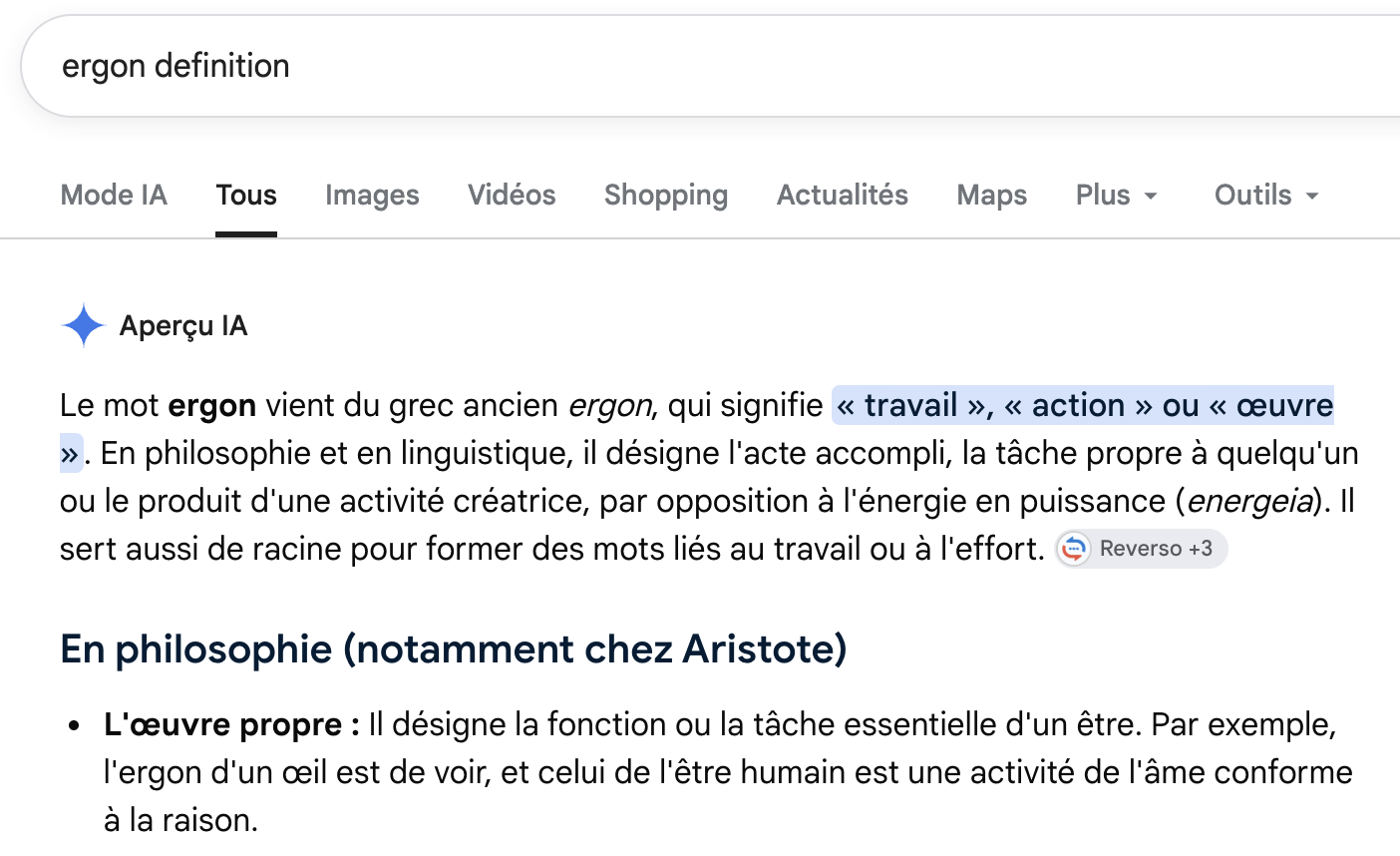
You know my lens: every job has its ergon (its irreducible function) and its envelope (the mechanical layer that AI gradually absorbs). For most tasks, letting AI absorb the envelope is exactly the right call.
But writing isn't an envelope. Writing is thinking.
Claude can research for you, structure your ideas, act as a thinking partner available 24 hours a day. That's valuable. But if your LinkedIn posts, your newsletters or your internal reports are generated from start to finish, your readers will feel it. And the day your writing no longer reflects your thinking, you have nothing left to sell that everyone doesn't already have.
My recommendation: turn on everything else, but keep the final writing for yourself. Use Claude upstream (research, outline, pushback) and downstream (proofreading, clarity). Never in the middle, doing the thinking for you.
In short
-
In Claude: open Cowork, type "/setup-cowork start", fill out the form
-
In ChatGPT: Settings, Apps and connectors, plus your custom instructions
-
Choose your plugins (or GPTs) based on your actual job, not on what looks impressive
-
Only connect the apps that are useful
-
Either way: say no to fully cloning your voice. Delegate the envelope, keep the ergon
Talk soon,
Salim
Get The Ergon Brief every week