
How I stopped struggling with Excel (without hiring anyone)
Does Excel make you break into a cold sweat? Read this.
Hello,
Last week, I ran into a very basic problem.
And most of you are going to be very glad I did.
At my startup, we had to manage some of the data sources we use to train our internal AI. I won't bore you with the technical details, but basically, everything ran through Excel.
The problem? Nobody on the team really knows Excel.
Me included. I mean, I get by. But between formulas that break, circular references, and hours spent googling "how to do a VLOOKUP"... it's not exactly the best use of my time.
And hiring someone just for that? Out of the question.
So I did what I've done since day one of my startup: look for an AI tool that solves the problem without hiring a pro.
And this is where you're lucky I struggled. Because ever since I launched GenevIA, this is probably THE question I get asked most:
"Salim, how can I handle Excel better with AI?"

So here it is. I dug in. I tested. And I found something.
Before I show you: not having to hire someone just for this got me thinking a lot about hiring and work in the age of AI. Deel specializes in the future of HR, and their free guide really helped me see things more clearly. I recommend it:
(Good to know: the guide is also available in French*, just pick the French version once you've clicked the link.)*
Global HR shouldn't require five tools per country

Your company going global shouldn’t mean endless headaches. Deel’s free guide shows you how to unify payroll, onboarding, and compliance across every country you operate in. No more juggling separate systems for the US, Europe, and APAC. No more Slack messages filling gaps. Just one consolidated approach that scales.
Now, back to those Excel cells.
My favorite find: Claude in Excel
You may already know Claude, Anthropic's AI (it's my favorite AI tool, and I don't hide it).
They just released an add-in that plugs straight into Excel. Claude is literally INSIDE your file.
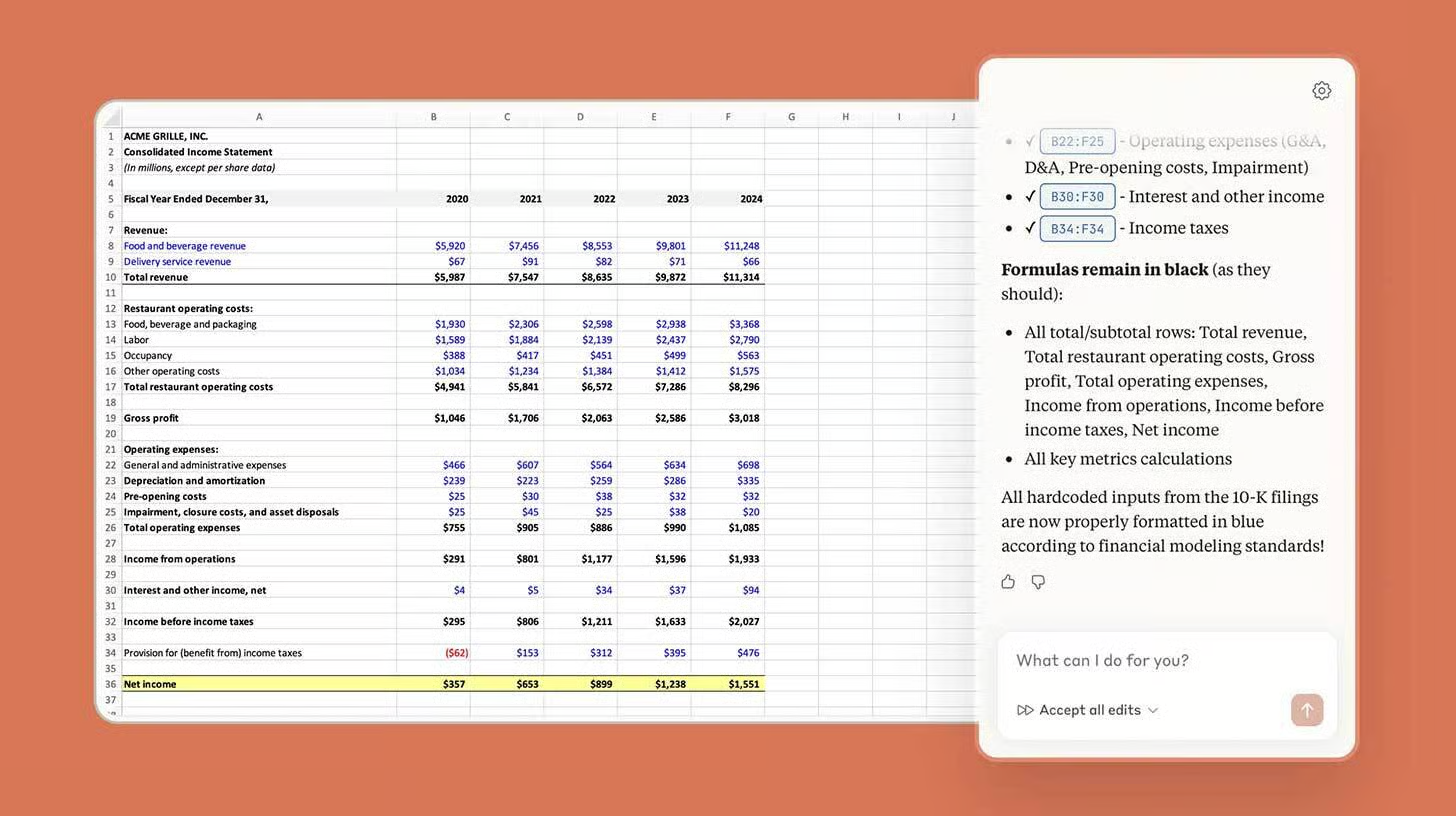
You hit a keyboard shortcut, and you've got an AI that understands your ENTIRE workbook: the formulas, the tabs, the dependencies between cells.
Here's what blew me away:
1. It understands your whole file
You ask it: "Explain how this model calculates revenue."
And it answers with the exact cell references: "Q3 revenue drops because cell D7 in the Assumptions tab went from 150 to 120 clients, which affects B14 in Forecasts."
Like having a financial analyst sitting next to you. Minus the coffee breaks.
2. It fixes your errors in seconds
The #REF! and #VALUE! errors, the circular references... the stuff that costs you 30 minutes? Claude traces it back to the source and tells you exactly what to fix.
3. It changes your assumptions without breaking everything
You tell it: "Change the growth rate from 10% to 15% and show me the impact." It does it. While keeping every formula and dependency intact.
How to use it (in 3 steps)
I'm not going to give you a 45-minute tutorial. Here's what matters:
Step 1: Go to the Microsoft Marketplace and search for "Claude by Anthropic for Excel". Install the add-in.
Step 2: Open Excel, enable the add-in, and sign in with your Claude account (you need a Pro, Max or Team plan).
Step 3: Press Ctrl+Option+C (Mac) or Ctrl+Alt+C (Windows). Claude opens in a side panel. Ask your questions in plain language, in English, French or whatever you speak. Like you would ask a colleague.
What it actually changes
Imagine:
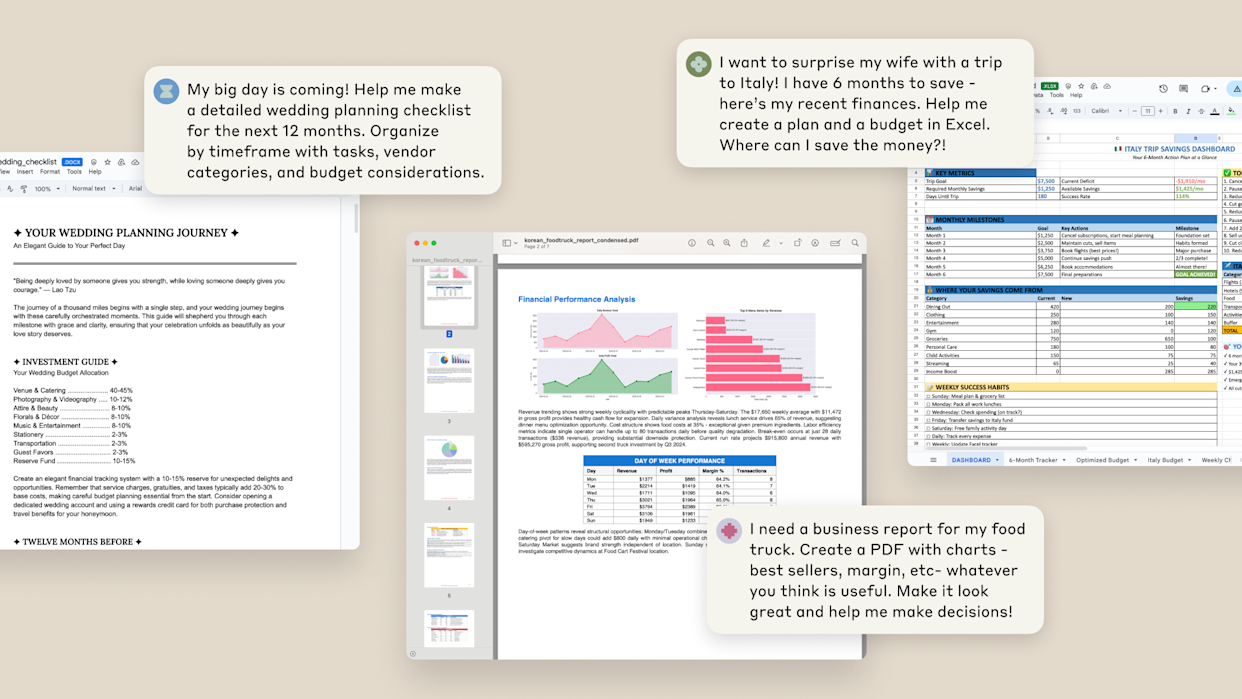
→ You get an Excel file from an accountant and can't make sense of it? "Explain this file to me as if I'm seeing it for the first time."
→ You need to test a scenario? "What happens if we lose 20% of our clients next quarter?" Answer in 10 seconds.
→ A formula error you've been stuck on for 3 days? Claude finds it and fixes it in seconds.
Talk soon,
Salim from GenevIA, in Geneva
Get The Ergon Brief every week