
4 Claude connectors that are actually worth it
How to plug Claude into your work
Yesterday, I gave myself a challenge.
Work a full day with nothing open but Claude.
No Slack, no email. Not even my calendar. Nothing else.
Just Claude.
The goal: see if it could be done. Get through 8 hours without the "let me just check Gmail real quick" reflex.
And honestly? I was pleasantly surprised.
I won't do it every day. Sometimes opening an app directly is still faster. But that day taught me one thing: Claude can do a lot more than most people ask of it, as long as you plug it properly into the rest of your stack.
They're called Claude Connectors.
There are more than 200 of them. And chances are, you use none of them today.
So today we'll look at how they work, and which ones are actually worth it.
I. How to plug an app into Claude
A Connector is a one-click bridge between Claude and a tool you already pay for.
Here's how, in 4 steps.
Step 1. Open Claude. Click the "+" in the message bar.
Step 2. Find "Connectors", then click "Add connector".
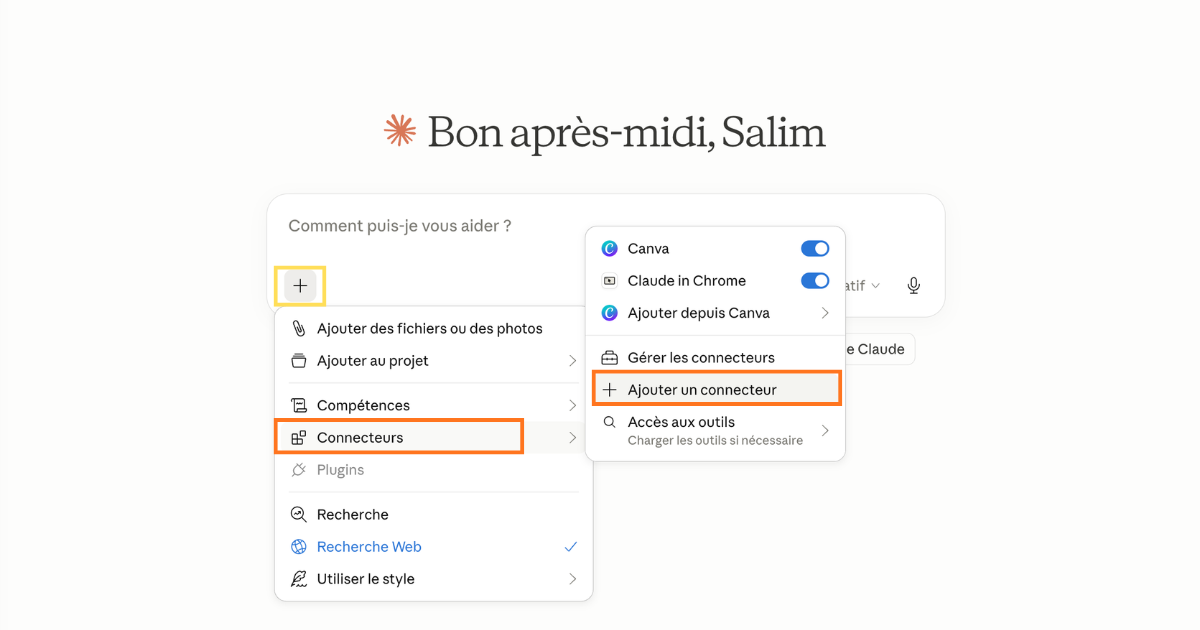
Step 3. Pick your app (Gmail, Slack, Notion, Canva...), authorize access. Done.
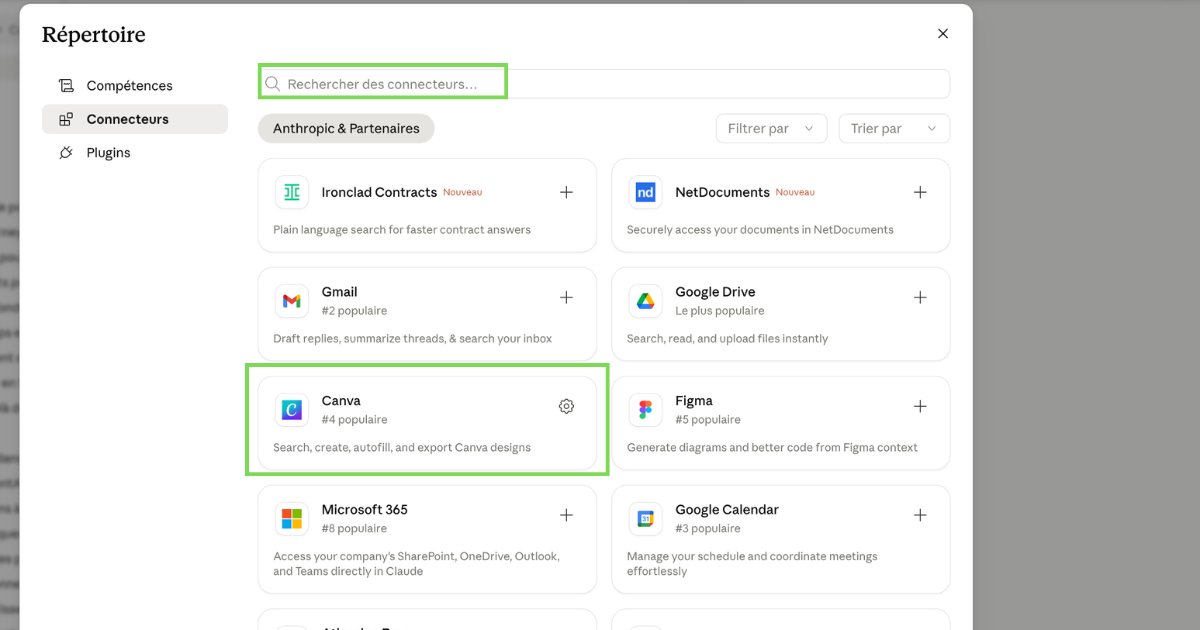
Step 4. In a new conversation, check that the connector is active for that chat (it usually is, automatically).
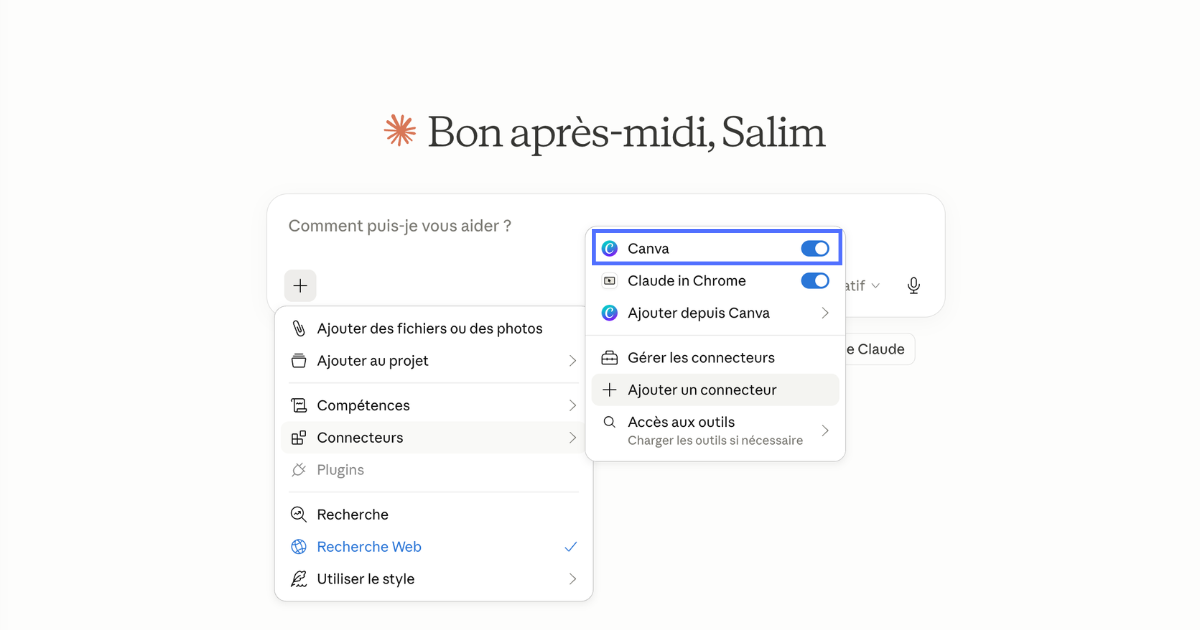
That's it. Now you can type:
"Make me a Canva infographic that sums up the 5 key numbers from my annual report."
And Claude opens Canva, builds the infographic with your data, and sends you back the link. Zero copy-paste. Zero tabs to open.
II. My 3 favorite connectors (and how I use them)
There are more than 200 connectors. You don't need to turn them all on. In practice, the trio below delivers 80% of the value on its own.
1. Gmail (or Outlook). The obvious one.
What it replaces: searching your inbox, landing on the wrong email, searching again.
A prompt to try tomorrow morning:
Read my Gmail from this week. Sort it into 3 categories: 1. Reply today 2. Can wait until Friday 3. Newsletter or FYI, ignore Output: 3 lists. No commentary.
Pro tip: add "Save the 5 replies as drafts in Gmail." at the end of your prompt. You show up in the morning and your drafts are waiting. All that's left is to reread, tweak, send.
2. Google Drive. Because we all use it.
I live in Google Docs and Google Sheets. So Claude is plugged into my Drive at all times.
Two uses I recommend.
Use 1: ask questions of your own documents.
Find my "2026 Strategy" doc in Drive. Pull out the top 3 goals for Q2. For each one, tell me whether I already have existing content elsewhere in Drive that could help.
Use 2: Claude Cowork.
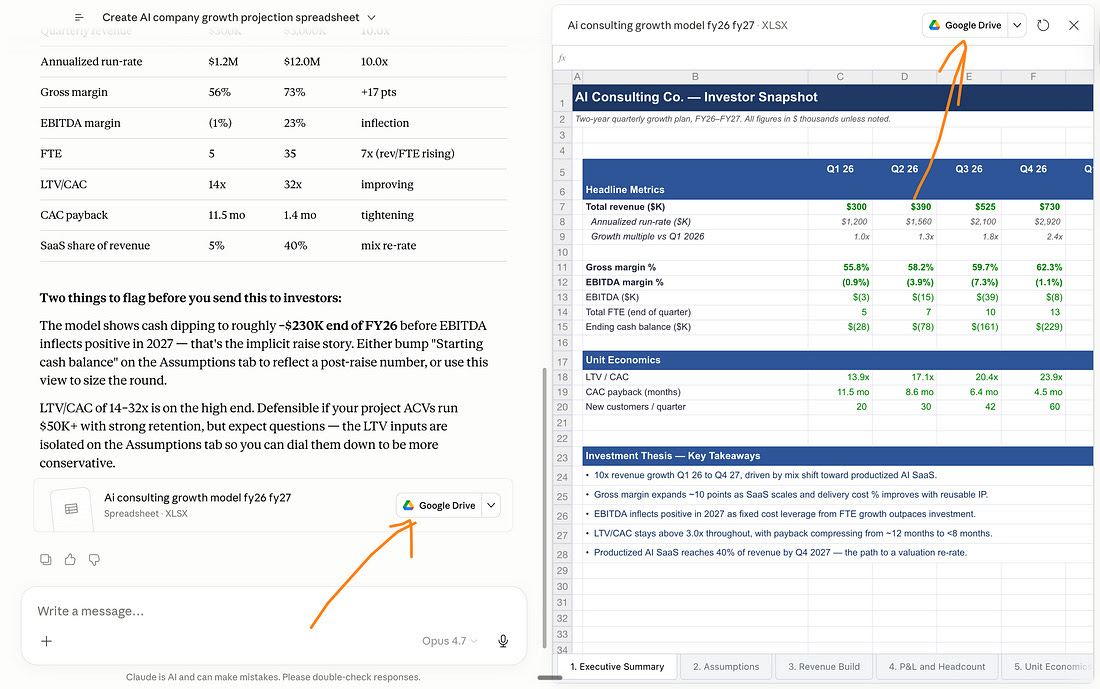
You describe the spreadsheet or doc you want. Claude builds it. You iterate. And at the end, you click "Google Drive". The file shows up in your Drive, ready to go.
3. Slack (or Teams). So you never miss anything again.
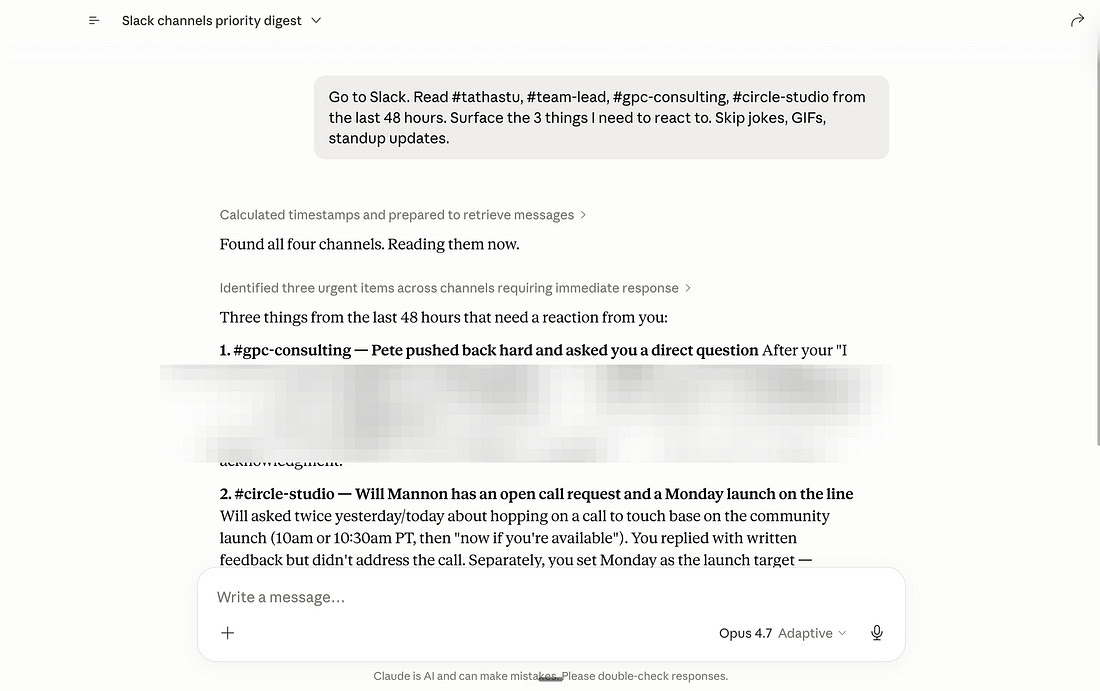
You know that thread you can never find again in Slack? Now Claude knows it too.
The prompt I use every Monday morning:
Read the #dev-team, #clients and #announcements channels from the last 48 hours. Pull out the 3 things I need to respond to. Ignore the jokes, the GIFs, the standups.
Pro tip: it really clicks when you combine several connectors in the same prompt. "Read the #clients Slack thread on Project Alpha, cross-check it with this week's emails, and tell me what still hasn't been decided." That's when Claude becomes indispensable.
4. Canva. For clean visuals without leaving Claude.
You saw it in the intro: this is the connector I used most during my "Claude only" day. And the one that surprised me most.
Before, my reflex for a quick visual was: open Canva, hunt for a template, copy my data in, adjust the colors, export. 20 minutes, minimum.
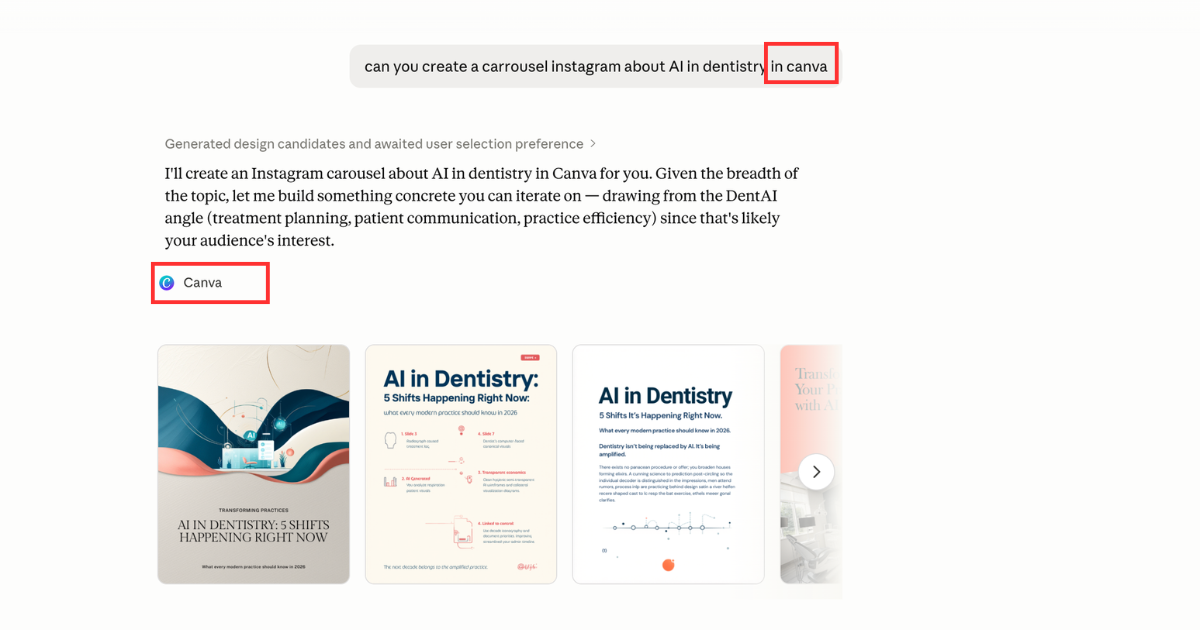
Now I describe what I want to Claude. It calls Canva. The visual comes out. I tweak it if needed.
A prompt that works well:
Go to Canva. Create an 8-slide deck on [TOPIC] for [AUDIENCE]. Goal: [what you want them to understand]. Cover: [5 key points]. Tone: confident, data-driven, concise. One idea per slide.
Pro tip: if you have brand guidelines in Canva (Brand Kit), Claude follows them automatically. Your colors, your fonts, your logo. No more "generic AI" visuals that everyone spots instantly.
III. 3 rules to follow
Rule 1. Don't leave every connector on by default.
Every active connector is context Claude has to scan before you've even typed a word. Turn them on per chat. Turn them off per chat. Treat the connector bar like a kitchen faucet.
Rule 2. Shut everything off for creative work.
When you're writing a LinkedIn post, an important email, or a script, you want a quiet room. The noise from Slack, Gmail and Notion pollutes your output. My writing chat: every connector OFF. Always.
Rule 3. Read-only before write.
Grant read access first. Watch Claude for a week. Then grant write access. Most accidents happen on day 1, when someone turns on a connector with full access and tells it "clean up my Drive".
For those who want to go further
The Ergon Report is written for leaders and professionals who don't want to sit out AI and want to make the right calls over the next 18 months. One thesis per issue. Concrete cases. A lens to see clearly and go further.
A usable tool (ready-to-use prompts, Claude Skills, cheatsheets…) every week.
And if you want this analysis landing in your inbox every week, so you can make the right calls in your field and your company, join now.
You don't need to connect all your apps to Claude at once. Start with one. Try it for 3 days. Move on to the next.
Talk soon,
Salim
Get The Ergon Brief every week